 Countflows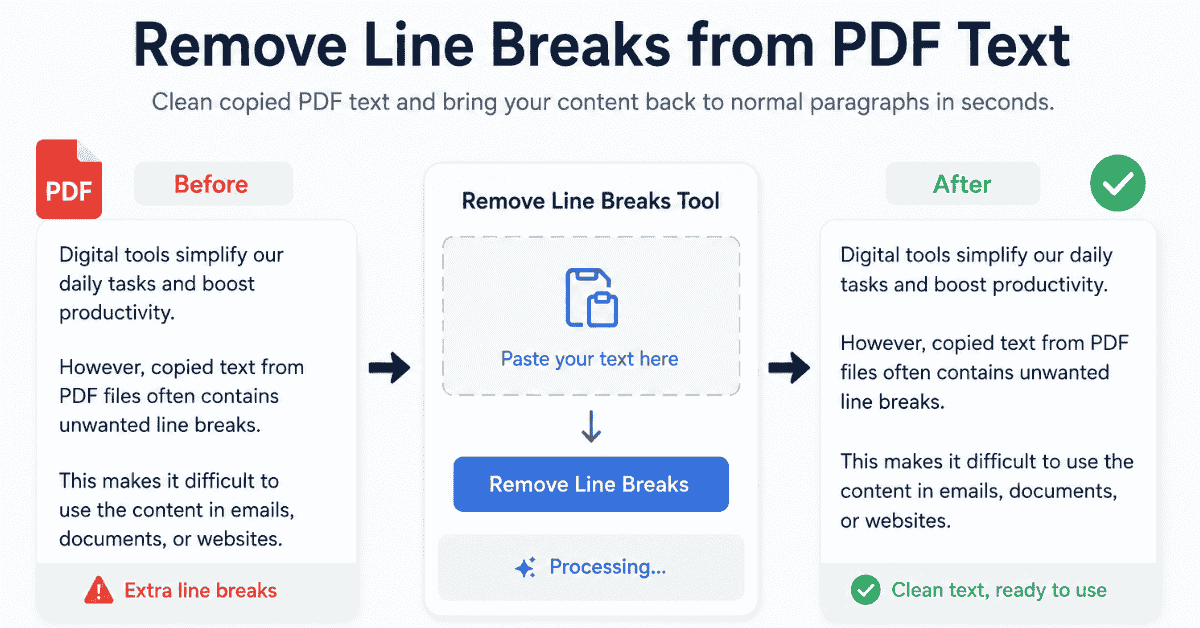
Topics Covered:
Helpful tools for this guide
You copy one clean paragraph from a PDF, paste it into Word or an email, and suddenly every visual line becomes a separate line. Fixing each break by hand wastes time and can damage the paragraph. The easier approach is to remove line breaks from PDF text automatically, review the result, and copy the clean text where you actually need it.
Table of Contents
- Why PDF text gets unwanted line breaks
- How to remove PDF line breaks in 5 steps
- Line breaks versus paragraph breaks
- How to protect real paragraphs
- Fixing spaces and hyphenated words
- Manual alternatives
- Common mistakes
- FAQs
Quick answer: Copy the broken text from your PDF, paste it into the Remove Line Breaks tool, clean the unwanted newlines, review the paragraph structure, and copy the result.
Why Does PDF Text Get Line Breaks When You Copy It?
A PDF focuses heavily on preserving how a page looks. Text may appear as lines positioned within a fixed page layout instead of behaving like a continuously flowing paragraph inside a normal word processor. As a result, copying can carry visual line endings into the clipboard. Adobe Community experts have documented the same issue with PDFs where text that visually belongs to one paragraph pastes with line breaks between lines.
That difference becomes obvious after you paste the content elsewhere. A sentence that occupied four visual lines in the PDF may arrive as four hard line breaks, even though you wanted one paragraph. Current PDF cleanup tools and guides continue to treat this as a core copy and paste problem.
How to Remove Line Breaks from PDF Text in 5 Steps
The fastest workflow doesn't require editing every line separately. A browser based line break remover can turn short broken lines back into usable text while you keep the original PDF open for comparison.
- Copy the text from your PDF. Select only the paragraph or section you need.
- Paste the text into the Remove Line Breaks tool.
- Process the unwanted breaks.
- Check paragraph boundaries, spaces, and split words.
- Copy the cleaned result into Word, Google Docs, email, a CMS, or another editor.
This method becomes especially useful for long reports, research material, ebooks, manuals, and documents where dozens of lines would otherwise require manual editing.
Review before you paste
Automatic cleanup should save work, not remove structure you intended to keep. Compare the result with the original PDF before replacing a large section of important text.
Line Breaks and Paragraph Breaks Are Not the Same
A line break moves text onto another line. A paragraph break separates one idea or paragraph from the next. They may look similar on screen, but removing both without thinking can turn a readable document into one enormous block.
Consider this example:
| Copied PDF text | Desired result |
|---|---|
| The report shows strong growth across all regions. |
The report shows strong growth across all regions. |
| Revenue also increased. | Revenue also increased. |
The first three lines belong together. The blank space before "Revenue" may represent a real paragraph boundary. A good cleanup workflow removes the unwanted internal breaks while preserving meaningful structure where necessary.
How to Keep Paragraphs While Removing Broken Lines
Start by looking at the source document. If the PDF uses blank lines between real paragraphs, those gaps give you a useful clue about which breaks matter. Remove the short breaks inside each paragraph while keeping the larger separation between sections.
Next, inspect the output before copying it away. Preserving paragraphs matters more than simply producing one long line. A five page report cleaned into a single paragraph may technically contain no newlines, but it becomes harder to read and edit.
When should you keep a paragraph break?
Keep it when the writer starts a new idea, heading, list, quotation, address, or section. Remove it when the next line clearly continues the same sentence.
Fix Hyphenated Words After Removing PDF Line Breaks
PDFs sometimes split a word at the end of a visual line. For example:
The new process improves produc-
tivity across the department.
Blindly replacing the newline with a space can produce produc- tivity, which is still wrong. The correct result is productivity. Current PDF cleanup tools increasingly address hyphenated words as a separate problem because joining lines alone cannot always fix them safely.
However, don't remove every hyphen automatically. Terms such as long-term, well-known, and many compound words contain legitimate hyphens. Check words that sit directly at former line endings instead of stripping hyphens across the entire document.
Remove Extra Spaces After Joining Lines
Another common problem appears when both lines already contain spaces around the break. Joining them may create double or uneven spacing. A quick second pass can reduce repeated spaces to one without changing normal word boundaries.
If the copied PDF contains additional formatting problems such as hidden Unicode, smart quotes, or unwanted markup, the AI Text Cleaner can handle broader text cleanup after the line endings are fixed.
Before and after
Before:
Copied PDF text can
contain broken lines
and   irregular spacing.
After:
Copied PDF text can contain broken lines and irregular spacing.
The goal isn't to rewrite the sentence. It is simply to restore readable plain text.
How to Remove PDF Line Breaks Manually in Word
Microsoft Word provides Find and Replace controls for special formatting characters. Word distinguishes paragraph marks from manual line endings, so you need to know which type your pasted text contains. Current Word guidance commonly uses ^p for paragraph marks and ^l for manual line endings.
For a short document, Find and Replace may work well. For text copied from many PDF pages, pasting the material into a dedicated cleaner can be simpler because you can process the text before adding it to your main document.
Replace breaks with spaces, not nothing
When two lines contain separate words, deleting the break without adding a space can glue them together. Replacing unwanted breaks with a single space is usually safer for normal prose.
Can You Copy PDF Text Without Broken Lines?
Sometimes the copying method or PDF itself changes the result. Adobe officially supports copying text, copying with formatting in some Acrobat workflows, and exporting PDF content into formats such as Word. However, the exact output depends on how the PDF was created and structured.
For a one off paragraph, trying another copy method may solve the problem. For repeated work across many files, a consistent PDF text cleanup step is usually more predictable because you can inspect the pasted text before reusing it.
When Should You Not Remove Every Line Break?
Lists are the clearest example. If you flatten:
- Apples
- Bananas
- Oranges
into:
Apples Bananas Oranges
you lose useful structure. Addresses, poetry, code, tables, citations, subtitles, and numbered instructions can also depend on intentional line endings.
Before using "remove all" behavior, ask one question: does each line represent a separate item, or is the line simply wrapping part of the same paragraph? That distinction prevents most cleanup mistakes.
Where Can You Use the Cleaned PDF Text?
Once the unwanted breaks are gone, the text becomes easier to reuse in documents, emails, website editors, notes, forms, AI prompts, and spreadsheets. Clean text also makes searching and editing easier because sentences no longer stop at arbitrary visual line endings.
If length matters after cleanup, use the Word Counter. For fields with strict limits, the Character Counter can check the cleaned output before you paste it into the destination.
Frequently Asked Questions
Why does copied PDF text break at every line?
Many PDFs preserve a fixed page layout, and copied text can carry those visual line endings into the clipboard. The result may contain hard breaks inside sentences.
How do I remove line breaks from copied PDF text?
Copy the text, paste it into a line break remover, process the unwanted newlines, then review paragraph boundaries before copying the result.
Can I remove PDF line endings without losing paragraphs?
Yes, but review blank lines and paragraph boundaries carefully. Remove breaks inside paragraphs while keeping meaningful separation between sections.
Why do some words stay split after PDF cleanup?
A PDF can split a word with a hyphen at the end of a visual line. Joining the text may restore the sentence flow, but the hyphen can still remain and needs a quick review.
Does cleaning PDF text change the words?
A basic cleanup should fix unwanted formatting and hard returns without rewriting the original wording.
Can I clean a large amount of PDF text?
Yes. Large copied sections benefit most because manual deletion becomes slow and error prone. Process manageable sections and review the result as you go.
The Cleanest Way to Fix PDF Copy and Paste Text
When copied PDF text contains unwanted hard returns, start with the formatting problem rather than rewriting the content. Join the lines that belong together, keep real paragraph boundaries, and inspect words split across line endings.
PDF cleanup becomes much easier once you separate three problems: unwanted newlines, extra spaces, and split words. Treating each one separately produces cleaner output than deleting every invisible character at once.
For repeated work, keep the Remove Line Breaks page as the main utility and use this guide as the supporting explanation. The tool solves the task, while the article answers why the problem happens and how to avoid damaging the text.
Related Articles
Continue with closely related CountFlows guides.
Reading & Writing
How to Calculate Words Per Minute Reading (Formula + Examples)
This guide walks you through exactly how to calculate words per minute reading — your true reading speed measured in words per minute — using one straightforward formula, examples worked out end to end, and the single conversion slip that silently wrecks almost everyone's numbers.
Reading & Writing
How Long Does It Take to Read 10,000 Words? (Full Guide)
Studying 10,000 words takes anywhere from 33 to 50 minutes for most adults, depending on pace. This guide breaks down reading times by speed, comprehension, genre, and mode of engagement.
Reading & Writing
Average Reading Speed (WPM): What's Normal & How to Test Yours
Adults typically read silently at 238 WPM with non-fiction and around 260 WPM with fiction. Out-loud reading drops to about 183 WPM. Anywhere from 175 to 300 WPM counts as normal.