Topics Covered:
Helpful tools for this guide
When you copy text from ChatGPT into Microsoft Word, Google Docs, email, WordPress, or another editor, unwanted formatting can sometimes appear. This may include Markdown symbols, headings, asterisks, extra spaces, unusual punctuation, long dashes, or hidden characters.
To remove ChatGPT formatting, you can paste the text without formatting, use the built-in cleanup options in Word or Google Docs, or use a ChatGPT text cleaner when Markdown and hidden characters still remain.
Quick Answer: How to Remove ChatGPT Formatting
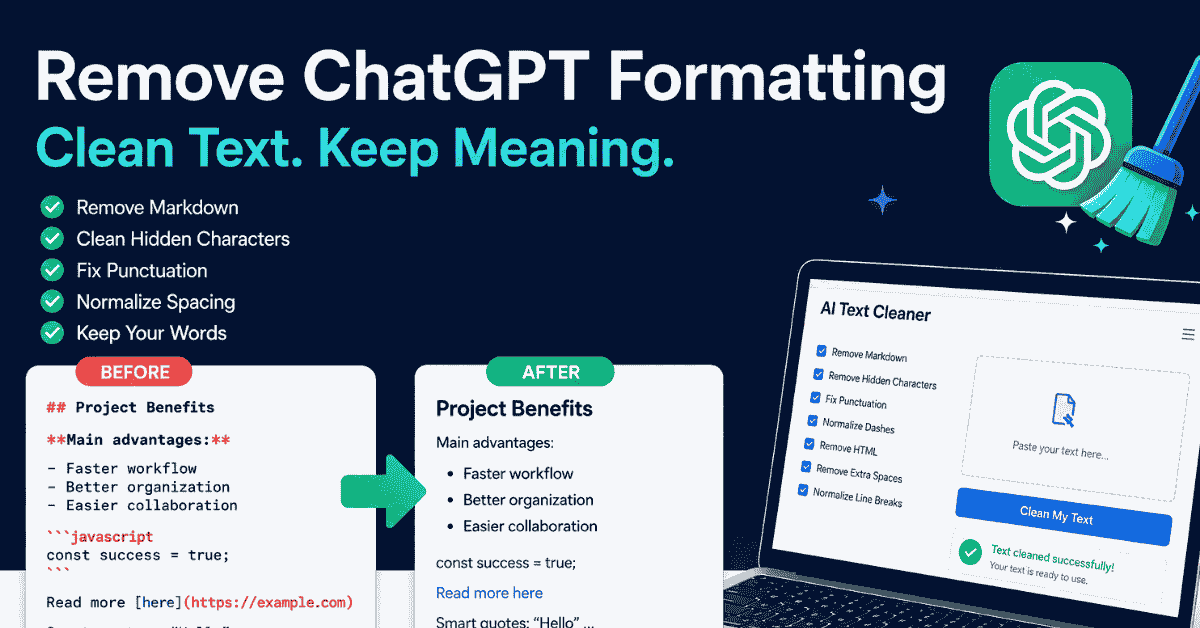
The fastest way to clean copied ChatGPT text is to remove unwanted Markdown, hidden characters, unusual punctuation, extra spacing, and HTML while keeping the original wording unchanged.
For simple formatting, try paste-as-plain-text or the Clear Formatting option in your editor. If several formatting problems appear at once, use the free AI Text Cleaner on CountFlows.
Why ChatGPT Formatting Appears After Copying
ChatGPT commonly uses Markdown-style syntax to structure responses. Headings may begin with ##, bold text may be wrapped in **, and lists may use dashes or numbers.
Inside the chat interface, these symbols are rendered as formatted text. When you copy the content elsewhere, the destination can handle it differently. Some editors keep the styling, while others expose raw Markdown characters.
Copied AI text can also contain unusual spaces, punctuation, line breaks, HTML entities, or non-printing Unicode characters. These may affect how text behaves in other editors.
Common Formatting Left in ChatGPT Text
The most common issues include:
- Markdown symbols such as **bold**, ## headings, backticks, links and list markers.
- Asterisks and hashtags that remain visible after copying.
- Hidden characters such as zero-width spaces or other non-printing Unicode characters.
- Smart punctuation such as curly quotes and single-character ellipses.
- Em and en dashes that do not match the punctuation style you want.
- Extra spaces and blank lines introduced during copying.
- HTML tags or entities when text moves between web-based editors.
For longer articles, reports, or AI responses, automated cleanup is usually faster and more consistent.
How to Remove ChatGPT Formatting: 5 Easy Methods
1. Use an AI Text Cleaner
A dedicated cleaner is the easiest option when the copied text contains several types of formatting.
Open the CountFlows AI Text Cleaner, paste your text and select the cleaning options you need. You can remove Markdown, hidden characters, smart punctuation, em and en dashes, HTML, repeated spacing, and other unwanted formatting.
Then click Clean My Text, review the result and copy it into Word, Google Docs, your CMS, email, or another editor.
A formatting cleaner can remove unwanted characters without paraphrasing or rewriting your sentences.
2. Paste Without Formatting
If the problem is mostly rich-text styling, paste as plain text.
On many Windows applications:
Ctrl + Shift + V
On many Mac applications:
Command + Shift + V
This can remove fonts, colors, hyperlinks, and inherited styling.
However, it may not remove literal Markdown characters such as **, ##, or backticks. It may also leave hidden characters or unusual punctuation unchanged.
3. Remove AI Formatting in Microsoft Word
After copying your AI response, paste it into Word and choose Keep Text Only from the paste options. This removes much of the original styling and lets the text adopt your document's formatting.
If the text is already pasted, select it and use Clear All Formatting from the Home tab.
Word can remove visual styling, but raw Markdown symbols may remain. If you still see asterisks, headings, or odd spacing, clean the text before pasting it into Word.
4. Remove Formatting in Google Docs
Google Docs also provides simple cleanup options.
Use Ctrl + Shift + V on Windows or Command + Shift + V on Mac to paste without formatting.
If the text is already in the document, select it and choose Format > Clear formatting.
These options work well for fonts and visual styles. For Markdown, hidden characters, unusual punctuation, or repeated spacing, use a text cleaner first.
5. Use Notepad or Another Plain-Text Editor
A plain-text editor can act as an intermediate step.
Copy the ChatGPT response, paste it into Notepad or another plain-text editor, copy it again, and then paste it into your final destination.
This strips most rich-text styling, although visible Markdown such as **bold** or ## Heading can still remain.
ChatGPT Formatting Before and After
Here is a simple example.
Before cleaning:
## Project Benefits

**Main advantages:**

- Faster workflow
- Better organization
- Easier collaboration
After cleaning:
Project Benefits

Main advantages:

Faster workflow
Better organization
Easier collaboration
The wording has not changed. Only the unwanted formatting characters and list markers have been removed.
That is the difference between a text cleaner and a paraphrasing tool: a cleaner fixes formatting, while a paraphraser changes wording.
What a Good ChatGPT Text Cleaner Should Remove
A useful ChatGPT formatting remover should handle more than asterisks.
| Problem | Example | What cleaning does |
|---|---|---|
| Markdown | **bold**, ## Heading | Removes syntax while keeping text |
| Hidden characters | Non-printing Unicode | Removes invisible characters |
| Smart punctuation | Curly quotes, ellipsis | Normalizes punctuation when selected |
| Dashes | Em dash and en dash | Replaces them when needed |
| HTML | <p>, <div>, & | Removes tags and decodes entities |
| Spacing | Repeated spaces and blank lines | Normalizes spacing |
The best approach is to select only the cleanup options you need. You may want to remove Markdown while keeping emojis, or fix spacing while preserving bullet points.
Manual Cleanup vs. a Formatting Remover
Manual find-and-replace can work for a few obvious symbols, but it becomes unreliable on longer text.
You may miss hidden characters because you cannot see them, and manual replacement can remove characters you intended to keep.
A dedicated cleaner processes the text consistently in one pass, making it useful for articles, reports, proposals, emails, product descriptions, and other content copied from AI tools.
When Should You Clean AI-Generated Text?
Cleaning is useful whenever AI-generated text moves from a chat interface into another document or publishing environment.
Common examples include:
- Pasting ChatGPT text into Microsoft Word
- Moving AI content into Google Docs
- Publishing in WordPress or another CMS
- Preparing emails, proposals, and reports
- Moving text into forms or website builders
- Removing Markdown before publishing
The goal is not to change the meaning of the text. It is simply to remove formatting that does not belong in the final document.
Frequently Asked Questions
How do I remove ChatGPT Markdown?
Paste the response into a text cleaner with Markdown removal enabled. It can remove heading markers, bold and italic syntax, links, code markers, and other Markdown characters while keeping the readable text.
How do I remove AI formatting in Word for free?
Use Word's Keep Text Only paste option or Clear All Formatting. If raw markdown or unusual characters remain then clean the text before pasting it into Word.
How do I remove ChatGPT formatting in Google Docs?
Use Ctrl + Shift + V on Windows or Command + Shift + V on Mac to paste without formatting. You can also use Format > Clear formatting on text already in the document.
Can I remove hidden characters from ChatGPT text?
Yes. A text cleaner can remove non-printing or zero-width characters that may not be visible during manual editing.
Does cleaning AI text change the wording?
Not when you use a formatting-focused cleaner. It should remove or normalize selected formatting while preserving your sentences.
Does this only work with ChatGPT?
No. Similar formatting issues can appear when copying text from Claude, Gemini, Copilot, and other AI tools.
Final Thoughts
We do not need to delete asterisks, hashtags, odd spacing, and unwanted punctuation one character at a time. We can remove ChatGPT formatting with paste-as-plain-text shortcuts, Word or Google Docs tools, plain-text editors or a dedicated cleaner.
For simple visual styling, manual methods may be enough. For Markdown, hidden characters, unusual punctuation, HTML, and spacing problems in the same document, a dedicated cleaner is faster and more consistent.
Try our free AI Text Cleaner on CountFlows to clean copied ChatGPT and AI-generated text before pasting it into your final document.
Related Articles
Continue with closely related CountFlows guides.
Writing & Education
How to Remove AI Detection From Text (What Actually Works)
Learn what actually happens when you try to remove AI detection from text — including whether humanizer tools work, real false-positive data from Turnitin, and the honest review process that holds up under scrutiny.
AI
Is an Em Dash a Sign of AI? Why AI Uses Em Dashes (2026)
Learn why em dashes are associated with AI writing, why AI tools use them, whether they can identify AI-generated text, and how to remove them when needed.
Writing & Education
5 Best CleanPaste.site Alternatives in 2026 (Free Tools)
Compare five CleanPaste.site alternatives for hidden Unicode characters, Markdown, spacing, privacy, pricing, and general text cleanup.