Topics Covered:
Helpful tools for this guide
Checking your word count in Google Docs means discovering exactly how many words in your document has. It is a quick task that only takes a few clicks. Want an even faster way? Try our free Word Counter Tool to check word count instantly without opening Google Docs.
How to Check Word Count on Google Docs (Desktop/Laptop)
If you want to Check Word Count in Google Docs on a desktop or laptop, it becomes very easy once you know exactly how to do it. This neat feature of Google Docs is close in its Tools section, which takes only a minute to locate. No matter whether you are working on an assignment for school or creating a post for your blog, this will help you keep things on track.
And here's the great news: you won't be required to use any third-party applications or browser extensions in order to access this feature. Just follow these instructions.
Step 1: Open Your Document
Before learning how to show word count on google docs, go to Google Docs and select the file you wish to examine. This can be done either from your recently opened files, through Drive, or by using any link you might have saved previously.
Step 2: Go to the Tools Menu
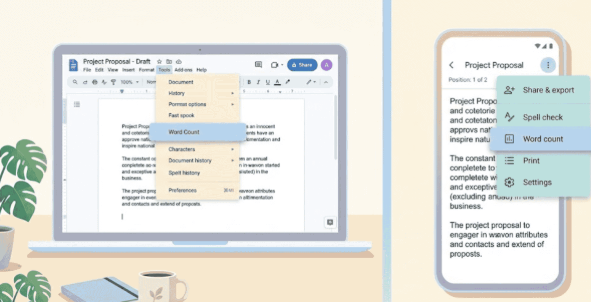
Simply look up towards the upper side of the screen; you will see the “Tools” tab in the menu bar. Just click on it, and you will find a drop-down list with multiple options available. All the useful tools within Google Docs are found here.
Step 3: Click on Word Count
Click on the drop-down list, then choose "Word Count." This option will typically be among the first items on the list. You'll immediately get a small pop-up window that appears on your screen.
Step 4: View the Word Count Details
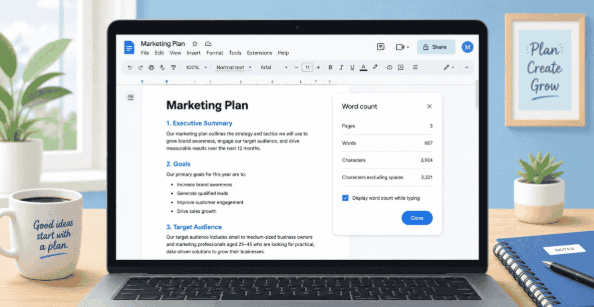
The total number of pages, words, characters and characters excluding spaces can be seen in a pop-up screen that opens when you click this option. If you want to keep tracking word count on google docs while typing, all you need is to check the box labeled 'Display word count while typing".
How to Check Word Count for Selected/Highlighted Text
Step 1: Highlight the Desired Text
Highlight the area of the text that you wish to find the word count for by clicking and dragging your mouse pointer across the area. This could be a few sentences, one or several paragraphs, or even several pages.
Step 2: Open Tools > Word Count
With your text still highlighted, click on the "Tools" menu at the top of the screen, then select "Word Count" from the dropdown. Don't worry if the highlighting looks like it disappears for a second Google Docs still remembers your selection.
Step 3: View the Word Count for Selected Text
An additional pop-up window will open up displaying the number of words and characters in the selected text only; it will be shown like "45 of 1,230," allowing the user to compare the numbers of the selected section against those of the entire document.
Want to Check Word Count in Google Docs while you're on the move? The mobile app makes it simple too.
How to Check Word Count on Android
Launch the Google Docs application and select the file from which you want to determine the word count. You will notice three vertical dots at the upper right-hand side of the screen; click on those dots to view the options in the drop-down menu. Choose “word count” from the drop-down list, and you will be presented with the required information.
How to Check Word Count on iPhone/iPad
The steps involved on iPhone and iPad devices are nearly identical to those for Android phones. In the Google Docs app, open the document that needs counting, click on the three dot menu button at the upper-right corner of the screen, select "Word count," and a small window will show your results. For selective counting, highlight the portion of text as is done in Android.
How to See Word Count Using a Real-Time Counter
- Use the keyboard shortcut: Press Ctrl + Shift + C on Windows or Command + Shift + C on Mac to open the word count pop-up instantly. Tick "Display word count while typing" to pin it to your screen.
- Try a browser extension: Install a word count extension from the Chrome Web Store, enable it, and it'll show live counts as you write—no need to open the Tools menu at all.
- Keep the pop-up open: Once enabled, the live counter sits quietly at the bottom left of your screen, updating with every word you add or delete.
- Works for selections too: Highlight any text, and the live counter will show you the count for just that section alongside the total.
What's Included and Excluded in the Word Count?
Your google docs word count includes most of your words, but not everything is counted. Your actual word count will include your text content; however, Google Docs does not include headers, footers, and notes in the count.
What to Do If "Word Count" Option Is Missing in Google Docs
Nevertheless, there are times when the word count feature is not available in Google Docs. You don’t have to be alarmed because this actually happens quite often.
First, it might help to try again searching for the word count feature under the Tools menu. Alternatively, you can try using the keyboard shortcut which would be Ctrl+Shift+C for Windows and Command+Shift+C for Mac.
Estimated Reading Time Based on Word Count
One more thing your word count can help you with is determining the time that will be needed to read through your paper. According to research on reading speed, people read an average of 200-250 words in a minute. This means that the 1,000-word essay you just finished writing would take around 4-5 minutes to be read.
There are numerous uses for this handy tip. It allows writers to gauge the approximate reading time of their blog post or speech. Teachers utilize this tip when checking if an essay is in line with the time limit.
Why Knowing Your Word Count Is Useful for Writers
Knowing your word count helps writers in many ways. Schools and universities set strict word limits for essays and reports. Job applications and grant proposals also follow tight word count rules. Checking it early saves you from last-minute stress.
Beyond rules, your word count shows your progress too. Bloggers use it to keep posts the right length for SEO. Writers track it daily to hit their goals. It's a small habit that makes writing projects much easier to manage.
FAQ’s
What does Ctrl+K do in Google Docs?
Ctrl+K doesn't show your word count; it opens the insert link tool instead. Use it to quickly add hyperlinks to your document.
How do I see word count while typing?
Open Tools > Word Count and tick "Display word count while typing." Your live count will then appear at the bottom of the screen.
What is the shortcut for word count on Google Docs?
Press Ctrl + Shift + C on Windows or Command + Shift + C on Mac. This instantly opens the word count pop-up window.
Why is there no word count on Google Docs?
Sometimes the word count tool hides due to an outdated app version. Try updating Google Docs or switching to the browser version.
Conclusion
To Check Word Count in Google Docs is really simple, and you can do it from any device. By doing so, you will keep track of how much you have written, whether you've reached the limit set, and how much more time will be required for your reading.
- Use Tools > Word Count or the keyboard shortcut Ctrl + Shift + C (Cmd + Shift + C on Mac)
- Highlight text to check the word count for selected text
- On mobile, tap the three-dot menu and select "Word count"
- Turn on "Display word count while typing" for live updates
With these tips, you can easily manage your writing projects and ensure you meet any word count requirements.Happy writing!
Related Articles
Continue with closely related CountFlows guides.
Tools
Keyboard Shortcut for Word Count in Text, Docs & Vim
One-press shortcuts for word count across Word, Google Docs and Vim—how to view live counts and dialog boxes quickly.
Academic Writing
Academic Writing Guide: Structure, Examples & Tips for Students
A practical guide to academic writing, including structure, evidence, paragraph building, assignment command words, examples, citations, and editing.
SEO
SEO Content Writing: The 2026 Guide to Ranking on Google
A practical SEO content writing guide covering keyword research, search intent, E-E-A-T, content length data, on-page SEO, and AI search visibility.